
DLA DIBBS Guide
DLA DIBBS
No video added yet
1. What DLA DIBBS is and how SAM Submit helps
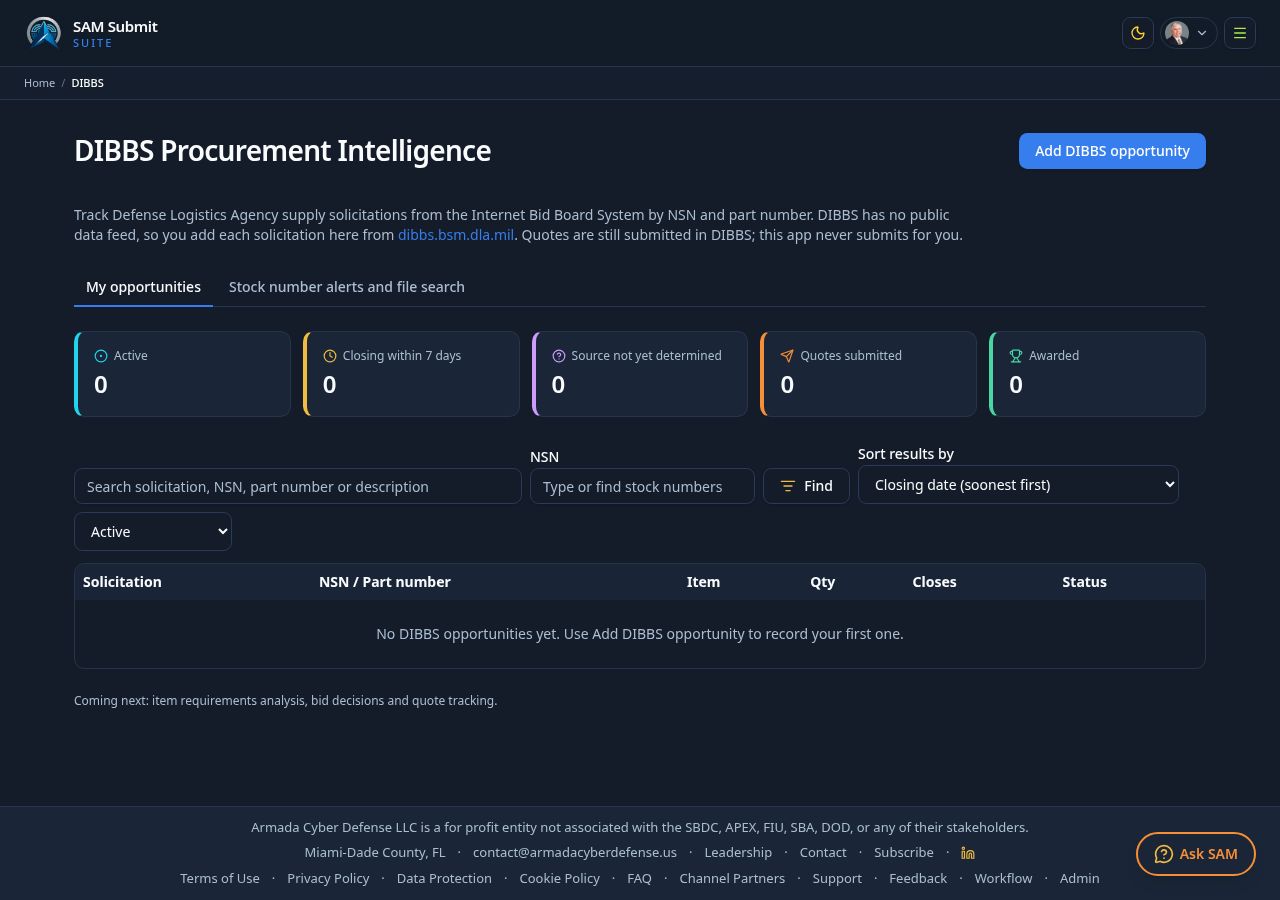
DIBBS (the DLA Internet Bid Board System, dibbs.bsm.dla.mil) is where the Defense Logistics Agency posts requests for quotes (RFQs), requests for proposals and invitations for bids (RFPs/IFBs) for spare parts and supplies, each tied to a National Stock Number (NSN).
SAM Submit helps you find those requests, decide which are worth quoting, check that your company is ready to deliver, gather supplier prices, calculate a safe quote price and keep a record of every decision. You still enter and submit your quote inside DIBBS itself; SAM Submit never submits for you.
- Open it from the main menu, or from Search under Pipeline: "DLA DIBBS supply quotes".
- The five tiles count Active records, those Closing within 7 days, those whose Source is not yet determined, Quotes submitted and Awards.
- Filter the list by keyword, NSN, status, and use "Sort results by" for closing date, issue date, last update, solicitation number, item, quantity or status.
2. Before you start
- Register your company in SAM.gov and have a CAGE code. DIBBS quoting requires both.
- Request a DIBBS account (vendor role) at dibbs.bsm.dla.mil and keep your password current; DIBBS locks inactive accounts.
- Know the supply classes (FSC, the first four digits of an NSN) you can source. Watch lists and searches work best when focused.
- Line up suppliers or manufacturers able to give you written quotes, and confirm whether they are approved sources for the part.
3. Find DIBBS solicitations in Search
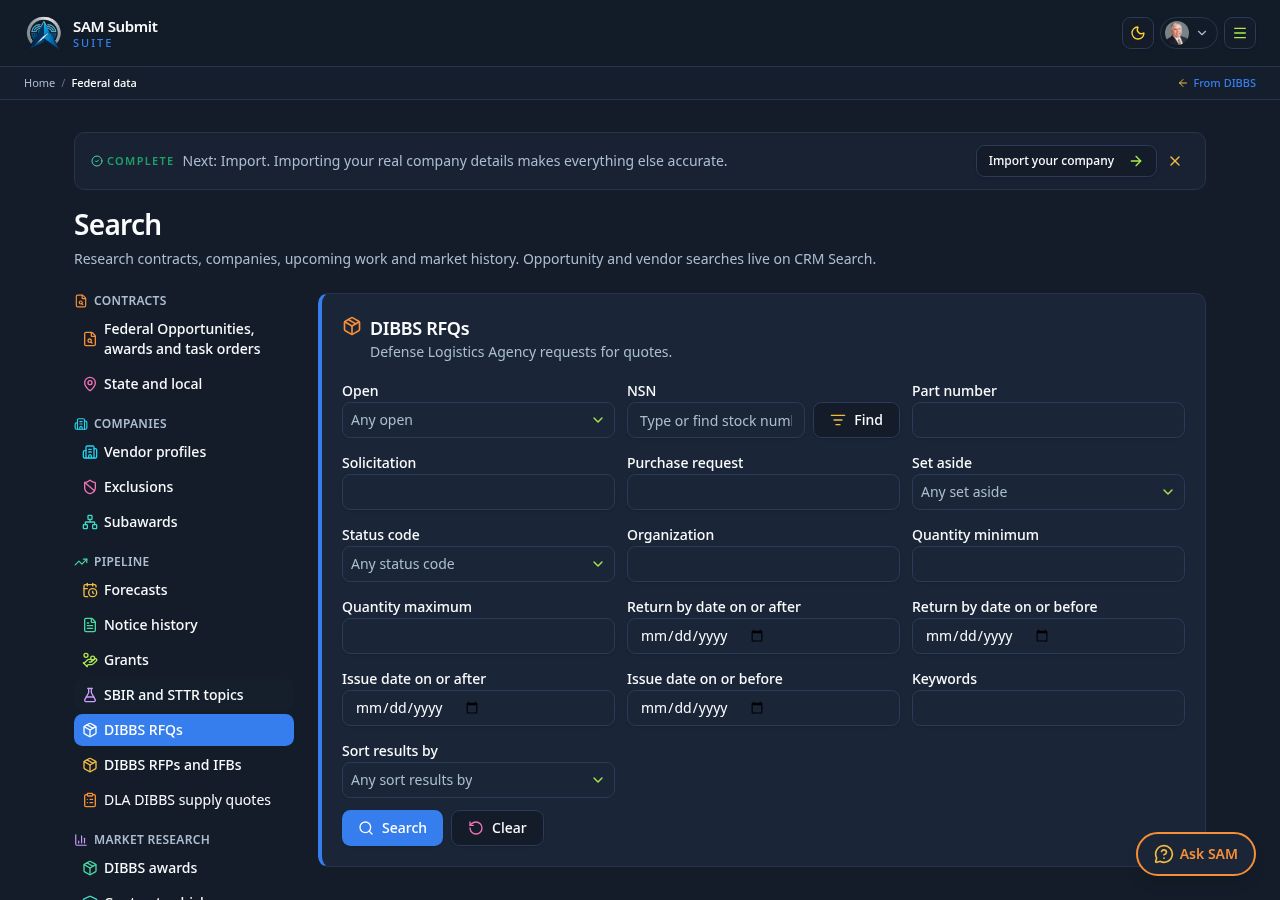
Go to Search. Under Pipeline choose "DIBBS RFQs" or "DIBBS RFPs and IFBs"; under Market research choose "DIBBS awards" to see who won past buys.
- Filter by open status, NSN, part number, solicitation, set-aside, quantity, return-by date, issue date and keywords.
- Pick a "Sort results by" option, for example soonest return-by date, then select Search. Up to 100 results show per page, with clickable DIBBS links.
- Use "Add to my DIBBS opportunities" on any result to copy it into your DIBBS records with its fields already filled in.
4. Use the stock number (NSN) finder
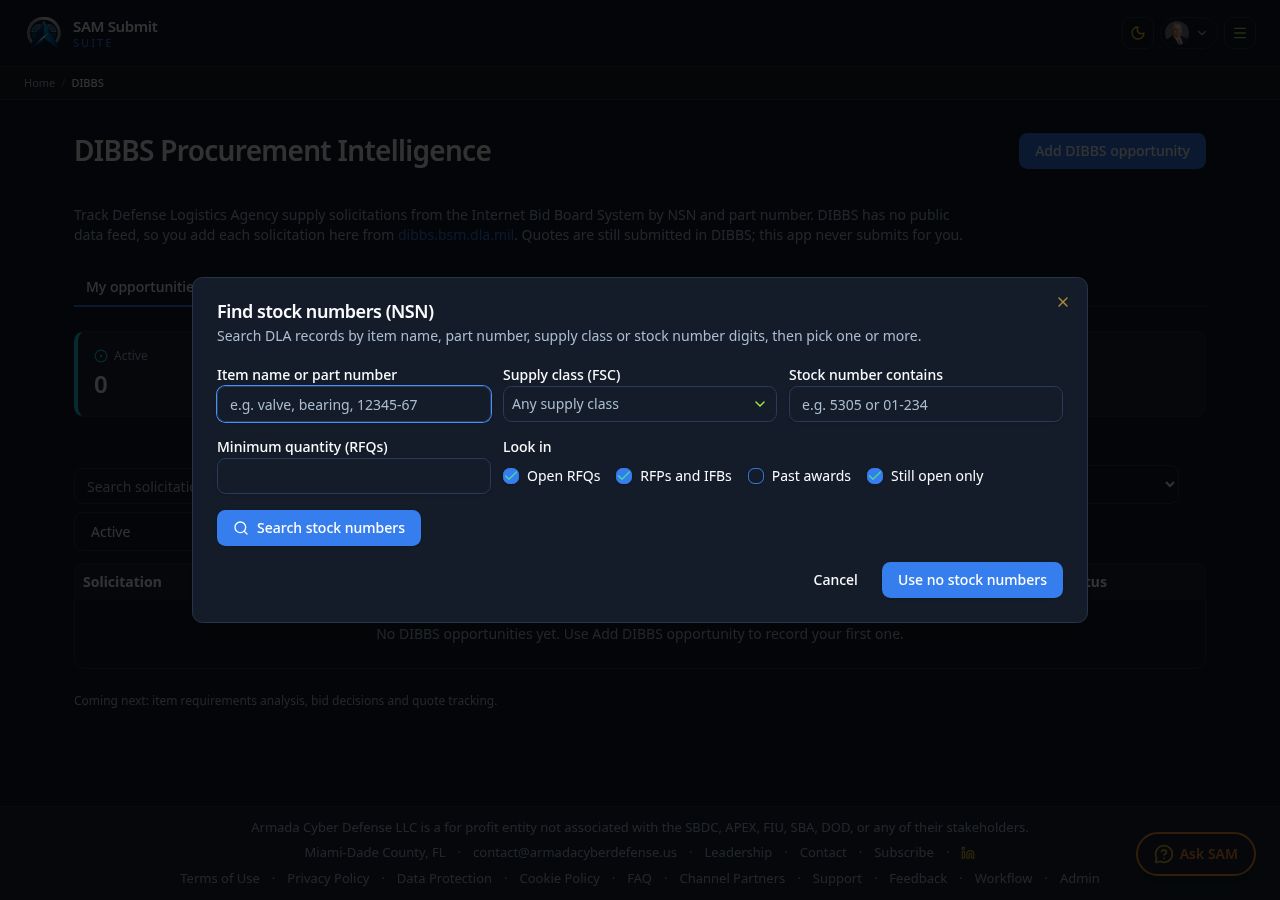
Every NSN field has a Find button. It opens a window that searches live DLA records, so you can locate stock numbers without knowing them by heart.
- Search by item name or part number, choose a supply class (FSC), type any part of the stock number, or set a minimum quantity.
- Choose where to look: open RFQs, RFPs and IFBs, past awards, and whether to show still-open items only.
- Tick one or more results, then apply them. You can also type full NSNs directly, separated by commas.
5. Add an opportunity to your records
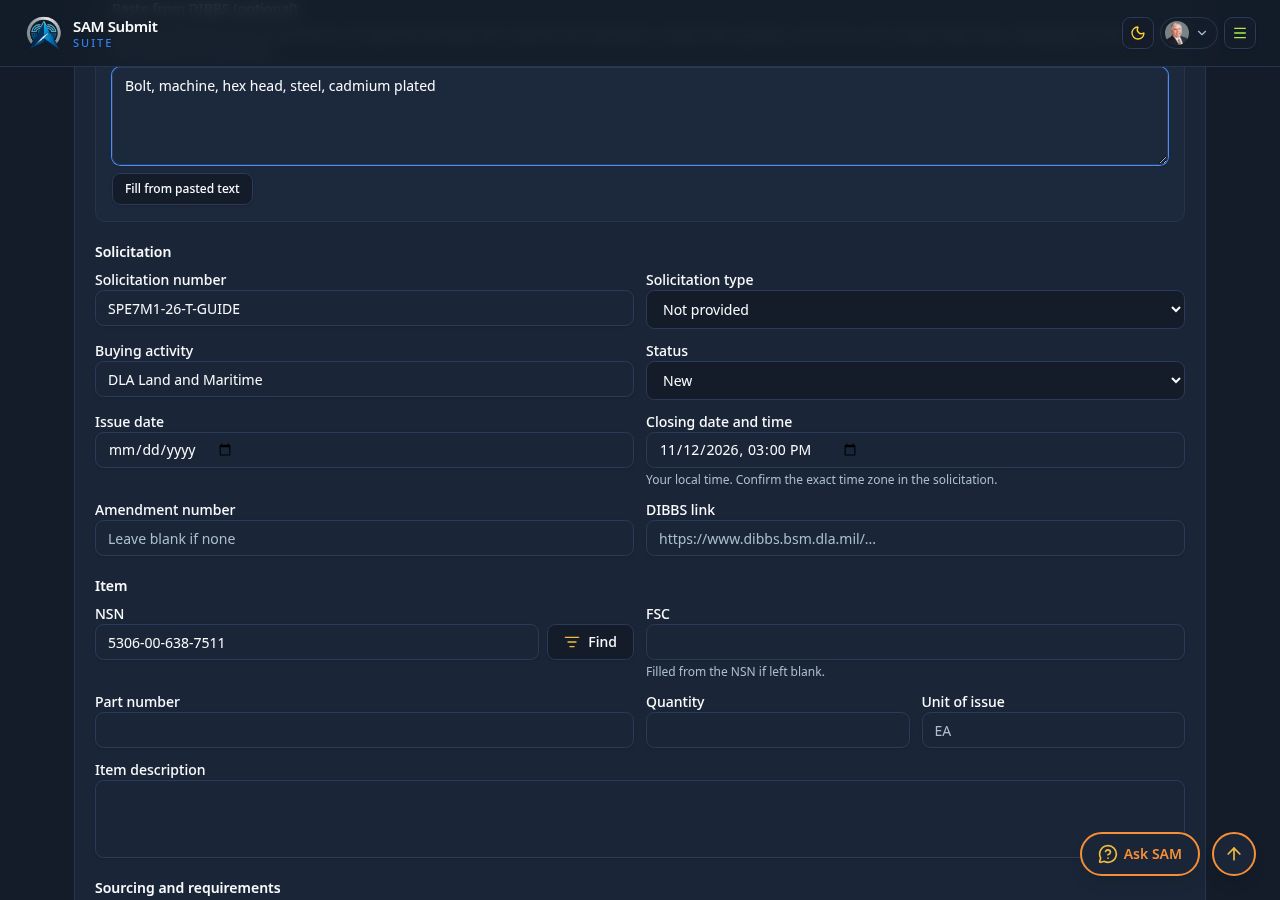
Select "Add DIBBS opportunity" (or "Add to my DIBBS opportunities" from Search). Copy the details from the DIBBS solicitation: solicitation number, buying activity, closing date and time, NSN, part number, quantity, unit of issue and the item description.
- Record the source restriction and approved sources (CAGE code and part number) exactly as written. Many DIBBS items only accept approved sources.
- Fill in delivery, inspection and acceptance, packaging, destination and clause notes. These drive the requirements list later.
- Confirm the time zone of the closing time in the solicitation. Late quotes are rejected.
6. Read the opportunity page
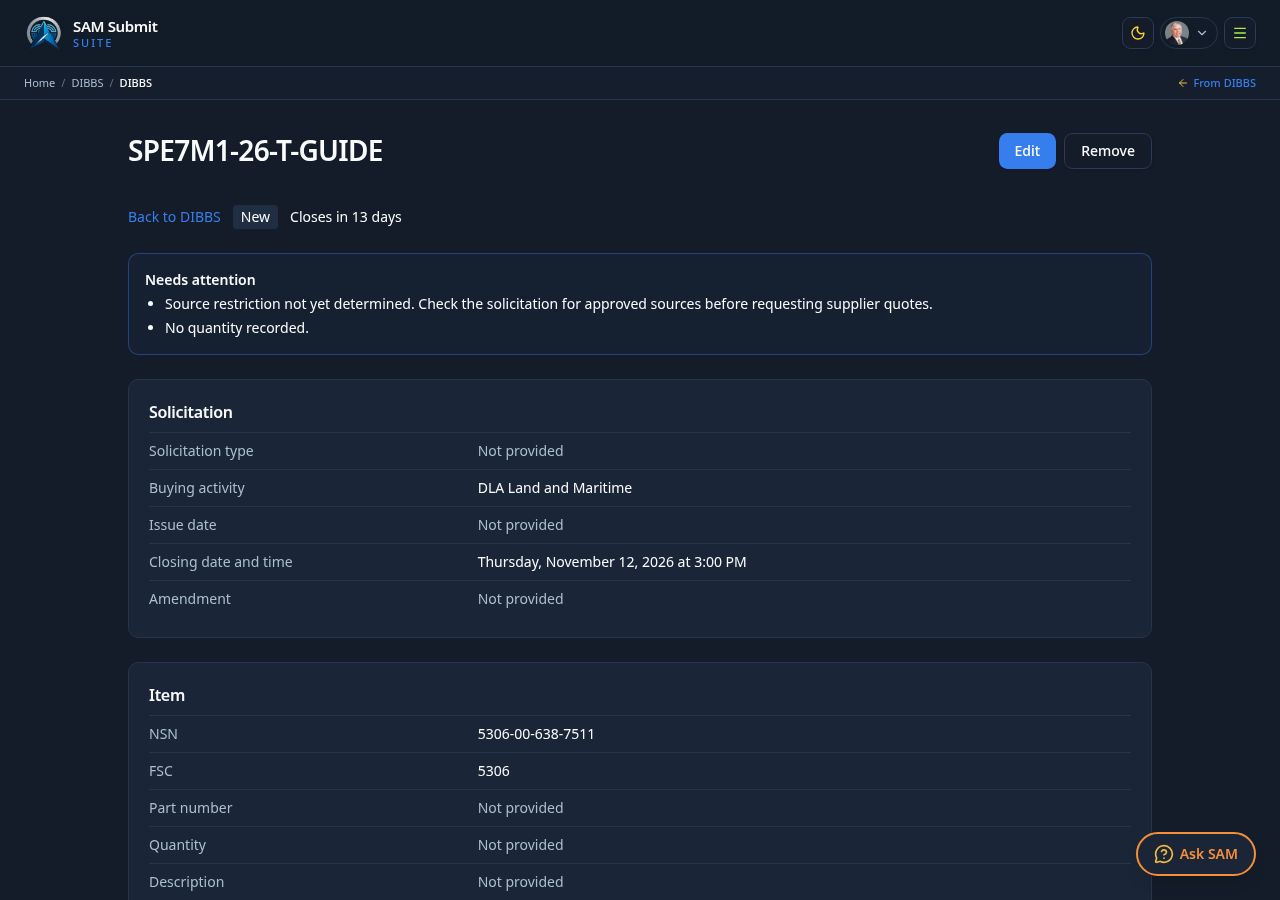
- The Needs attention box lists what is still missing, such as an unknown source restriction or quantity.
- Edit asks for the source of each change (for example "Amendment 0001"), and every change is kept in History and amendments.
- The status tag and "Closes in" countdown show where the item stands.
- The Ready to quote / Not ready tag beside the status summarizes your supplier readiness file for this item (step 8).
7. Build the requirements matrix
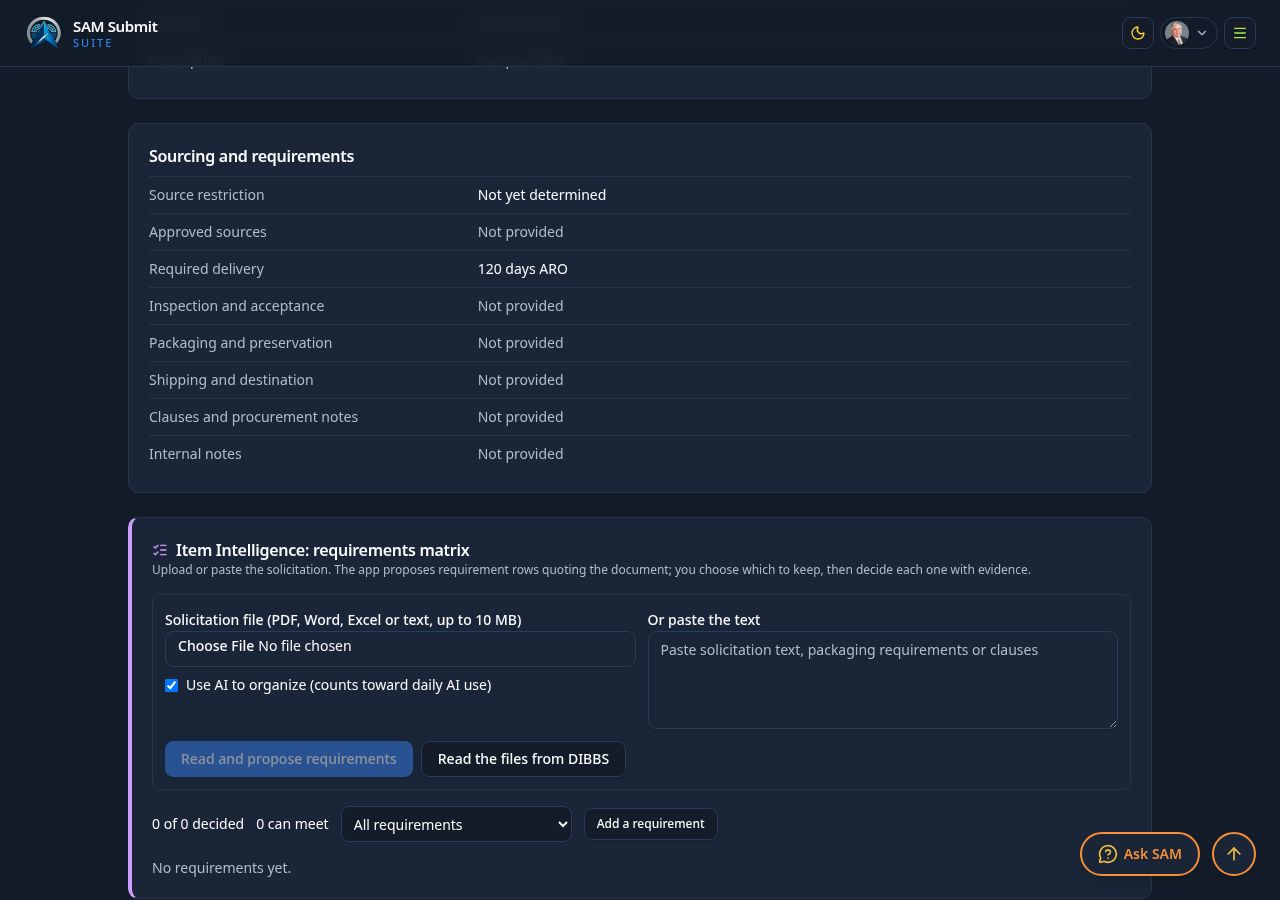
- Open RFQ documents and select Check availability. Retrieve validated original PDFs when available, or explicitly complete attachment-specific provider text labeled separately from the original. Missing, partial or unreadable sources remain unresolved. The requirements cover specifications, drawings, packaging, inspection, marking, delivery and clauses.
- Use Open Respond with saved RFQ sources to carry retrieved requirements into Respond. Upload missing RFQ documents there; solicitation text is never evidence that your proposal meets the requirements.
- AI sorting is on by default and counts toward your AI use; turn it off to list requirements without AI.
- For each requirement record whether you can meet it, with evidence or a reason. Filters show what is still open.
8. Connect the quote to your supplier readiness file
Below the requirements matrix, every opportunity page has a "Supplier readiness for this quote" panel, and the page header carries a Ready to quote / Not ready tag beside the status. It answers one question before you spend hours pricing a quote: can your company actually deliver this item under these clauses?
- Attach a readiness review: pick one of your saved Supplier Readiness reviews in the dropdown, press "Start a new review", or open the one already attached. Choose "No review attached" to detach it.
- Pull requirements into the matrix: copies each requirement you recorded into the clause matrix as an open gap tagged with this solicitation, so an owner, evidence and review date can be assigned to it. Requirements already in the matrix are not copied twice.
- Open matrix: goes to the clause matrix filtered to this solicitation.
- Ready to quote means every matrix requirement is reviewed as met or not applicable, the attached review is marked completed, and nothing expires before the quote is due. Anything else shows Not ready with the reasons listed in the panel; a review still in progress, or one past its next review date, counts as not ready.
- Expiry warning: when a registration or certificate expires before the quote due date, the panel names it and links to the readiness file so you can renew it in time.
Readiness has its own pages under Supplier Readiness in your Workspace: the review, the document file, risks and obsolescence, the clause matrix and a readiness report. The same registrations renew under Perform, Company readiness.
9. Record supplier quotes
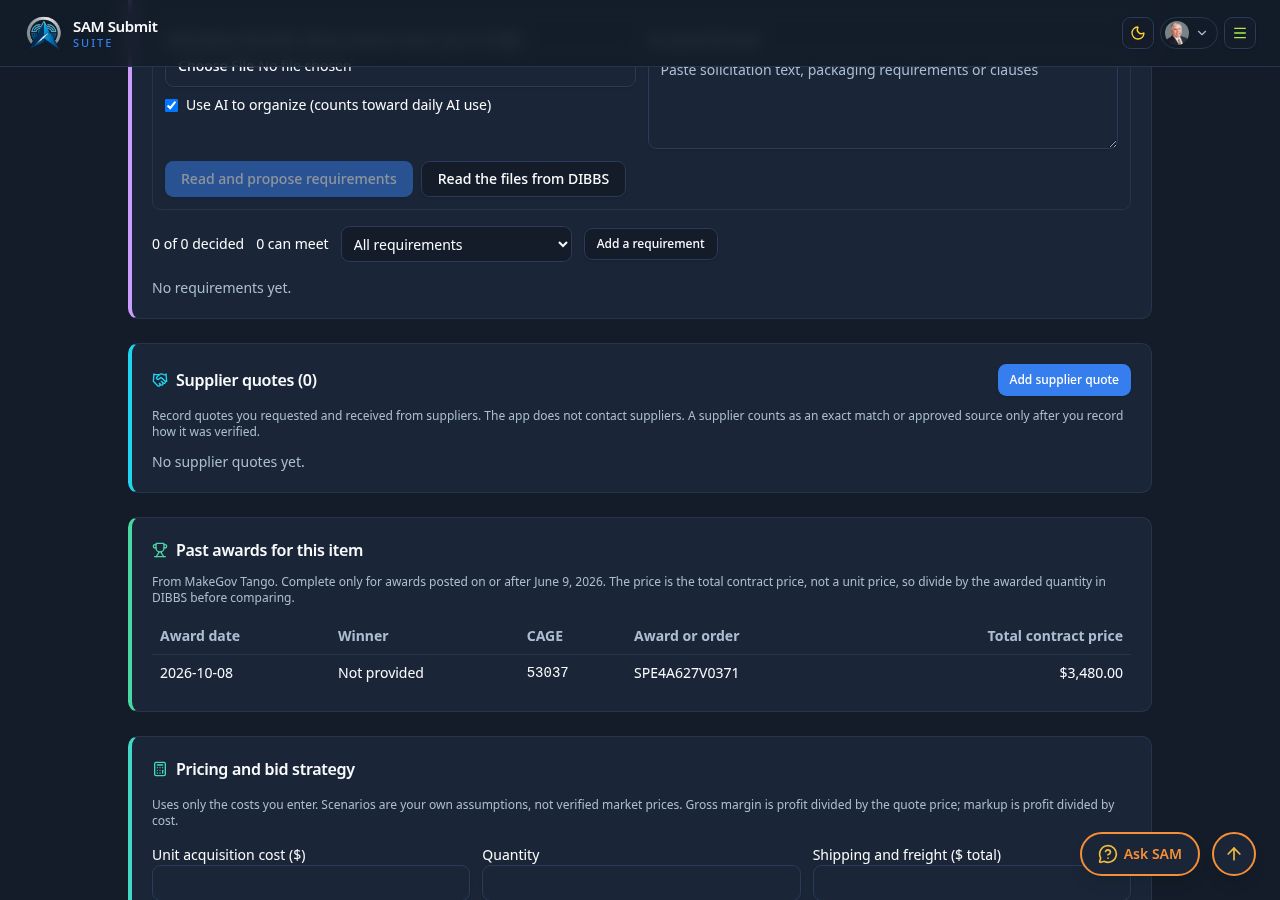
- Request quotes from your suppliers yourself; the app does not contact them.
- Add each quote with unit price, lead time, minimum order and how you verified the item and source (exact part, approved source, traceability).
- A supplier counts as an exact match or approved source only after you record how it was verified.
10. Check past awards for the item
- The panel lists earlier DIBBS awards for the same NSN with date, winner CAGE, order number and total contract price.
- The price is the total contract price, not a unit price. Divide by the awarded quantity in DIBBS before comparing.
- Award data is complete only for awards posted on or after June 9, 2026.
11. Price your quote
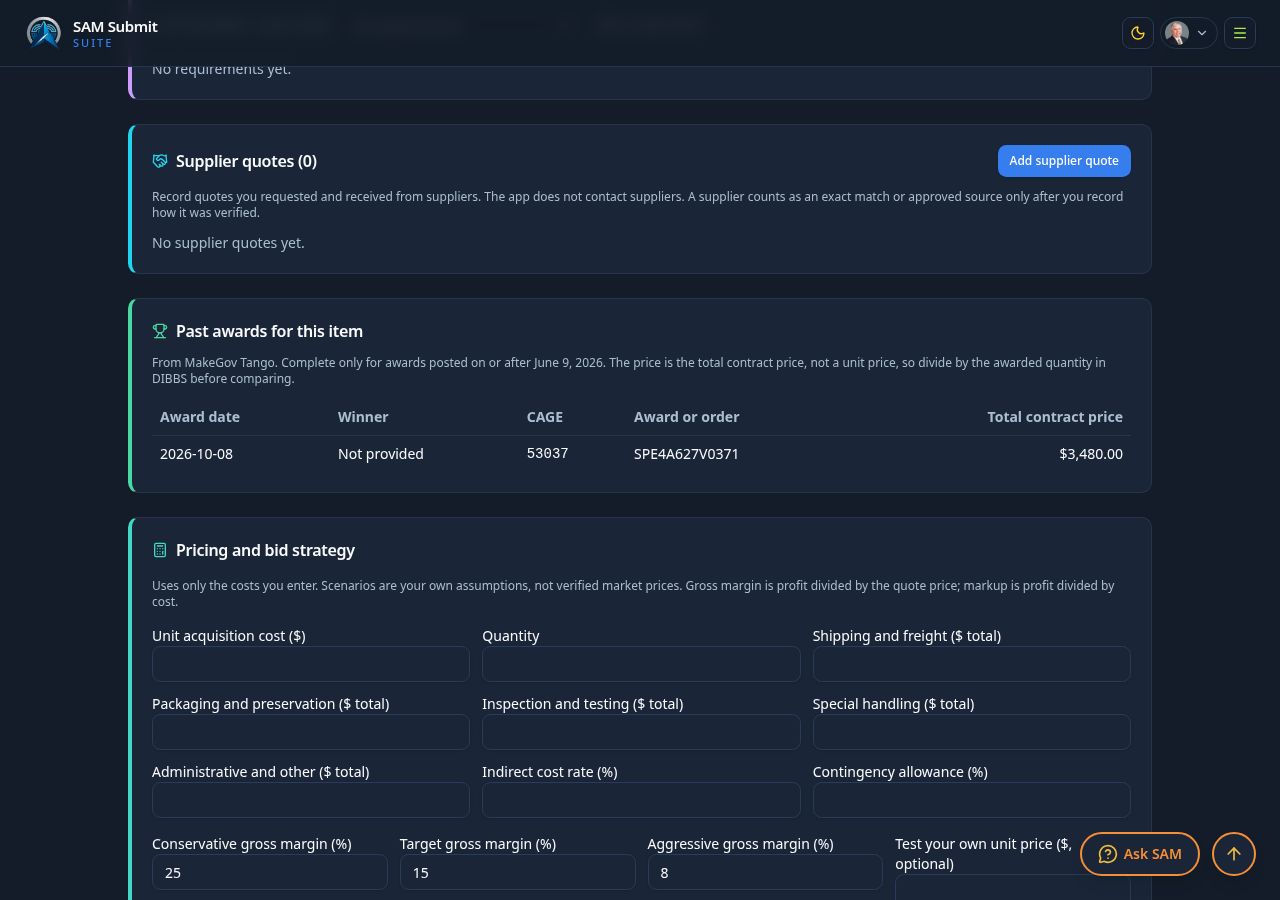
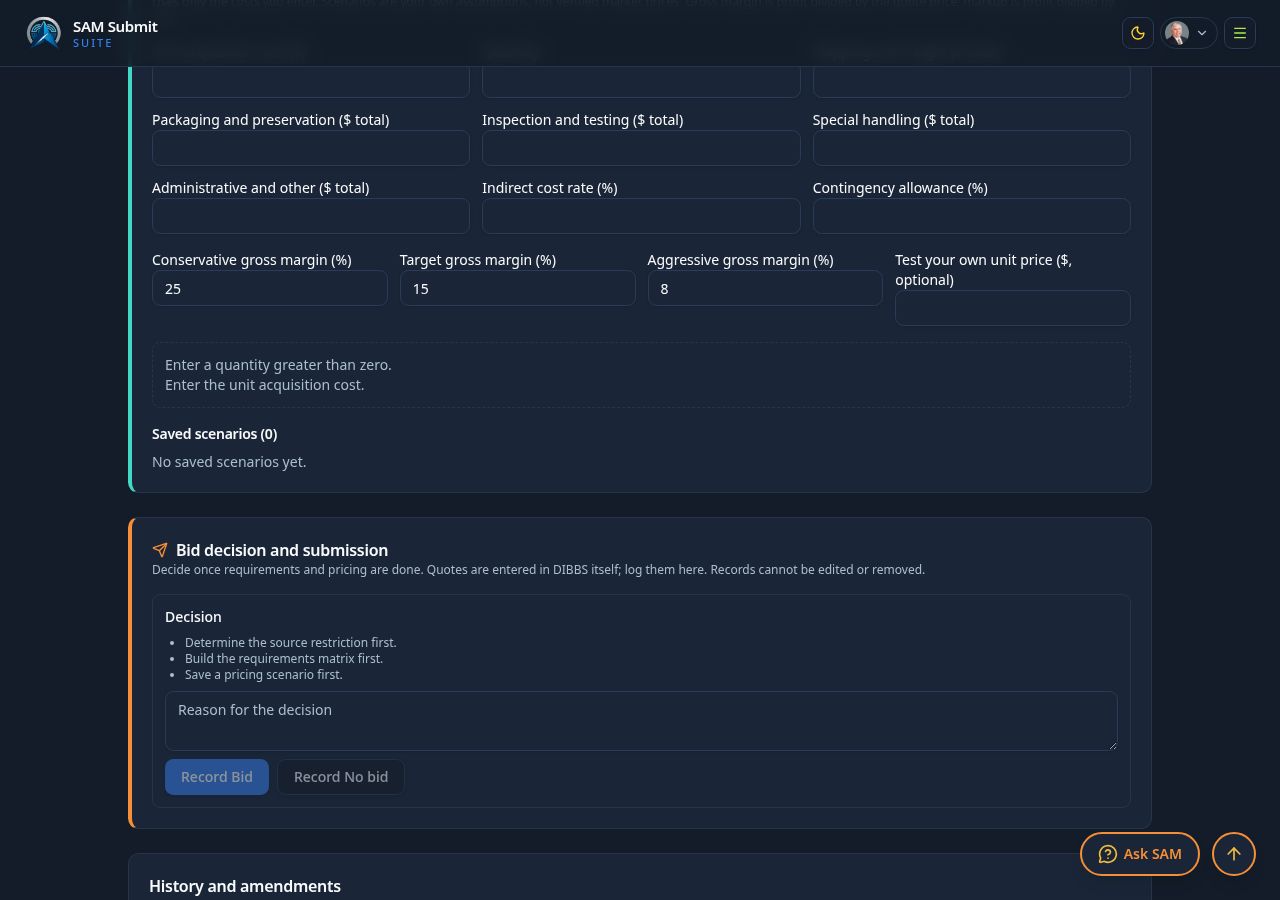
- Enter unit acquisition cost and quantity, then shipping, packaging, inspection, special handling and other costs, plus indirect and contingency rates.
- The calculator shows conservative, target and aggressive prices from your margins. Gross margin is profit divided by the quote price; markup is profit divided by cost.
- Test your own unit price, then save the scenario. Figures use only the costs you enter.
12. Decide, submit in DIBBS, and track the result
- Once the source restriction, requirements and a pricing scenario are done, record Bid or No bid with your reason.
- Enter the quote in DIBBS yourself, then log the submission here with the checklist. Records cannot be edited or removed.
- When DLA posts the result, record the award outcome so your win rate and history stay accurate.
13. Stock number alerts and file search
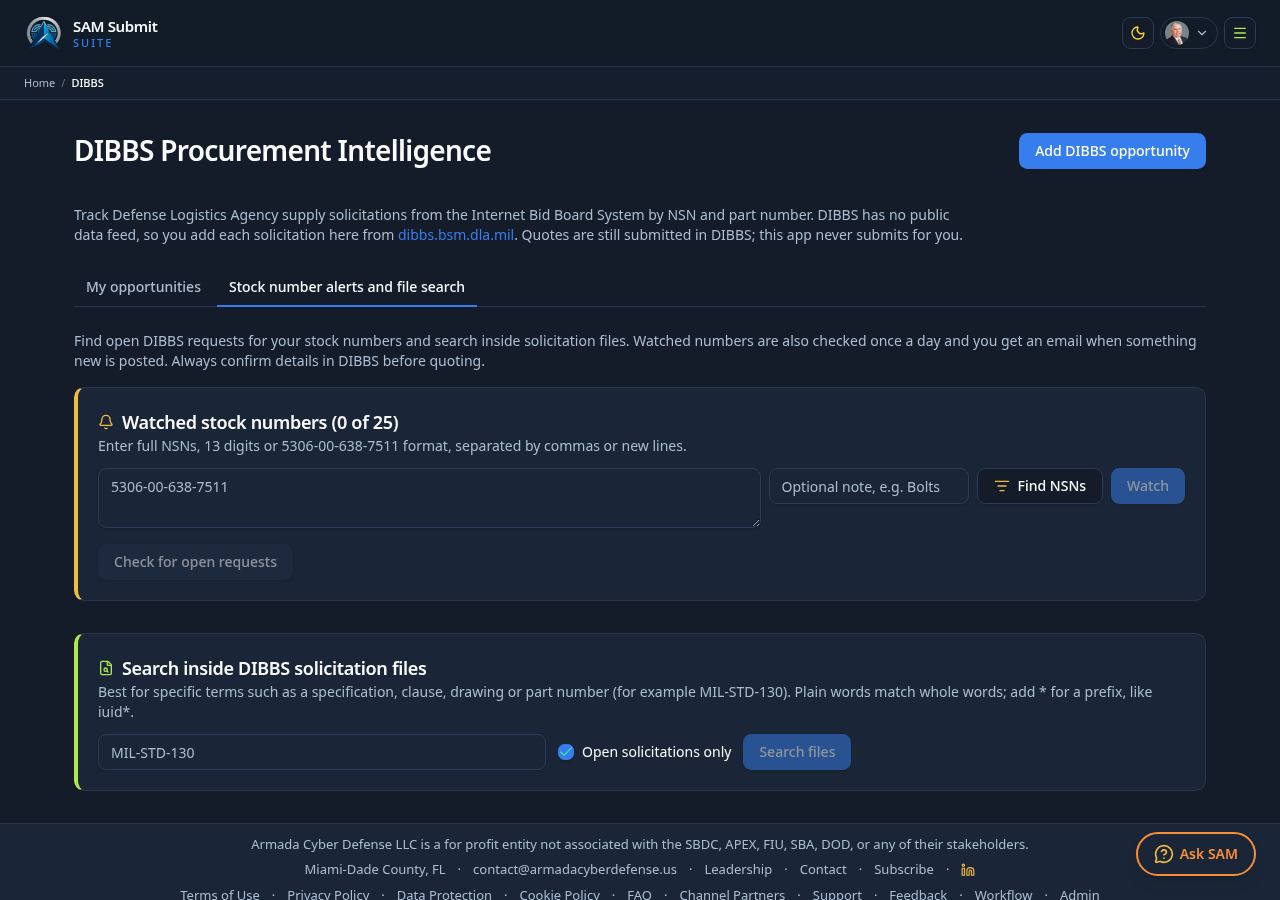
- Open the "Stock number alerts and file search" tab. Add up to 25 NSNs (use Find NSNs to look them up) with an optional note.
- Select "Check for open requests" any time. Watched numbers are also checked once a day, and you get an email when something new is posted.
- Search inside DIBBS solicitation files for a specification, clause, drawing or part number (for example MIL-STD-130). Add * for a prefix, like iuid*.
- Alerts are included in paid plans.
14. Let the Automation tab do the legwork
Open the "Automation" tab on the DIBBS page. It works from the items you already track, quote and win, so it gets better the more you use DIBBS in SAM Submit.
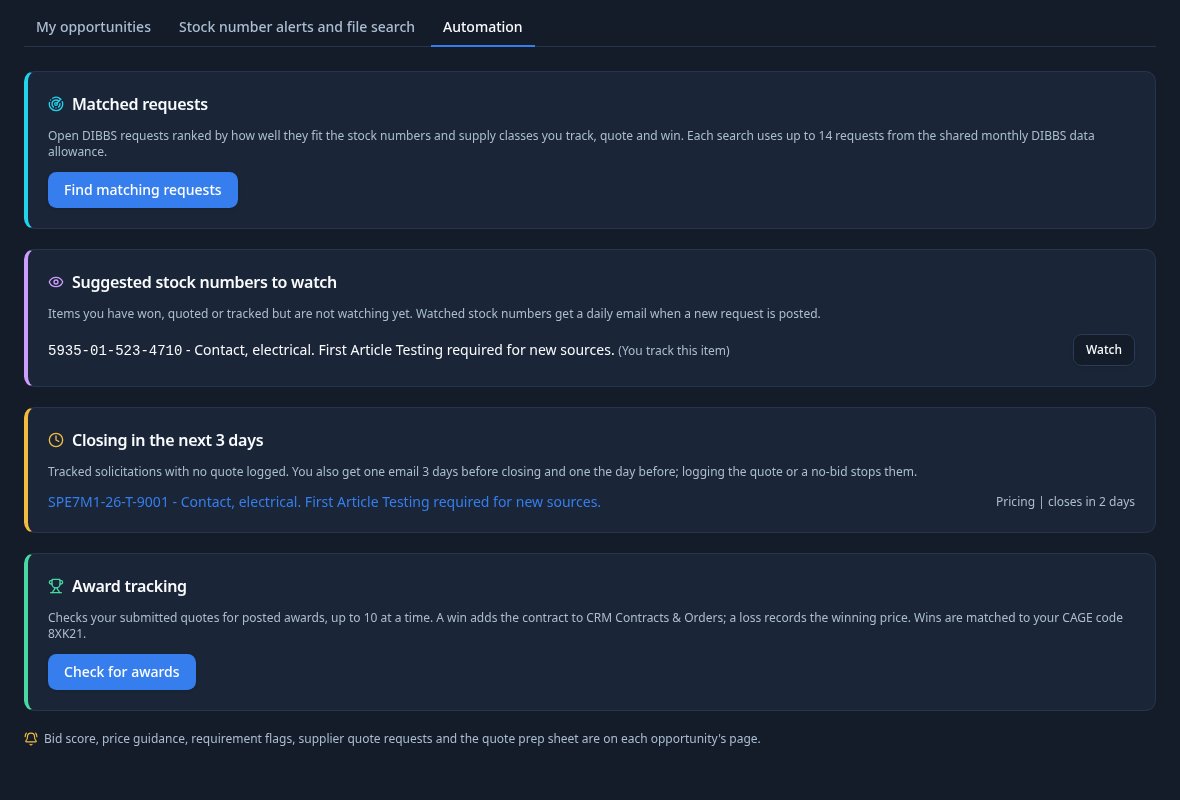
- Matched requests: press "Find matching requests" to list open DIBBS requests ranked by fit from 0 to 100. Items you quoted or won score highest, then watched stock numbers, then the same supply class (FSC). Each result says why it matched; press "Track it" to add it to My opportunities. One search uses up to 14 requests from the shared monthly allowance.
- Suggested stock numbers to watch: items you won, quoted or tracked but are not watching yet. Press Watch, or "Watch all", to get the daily new-request email for them.
- Closing in the next 3 days: tracked solicitations with no quote logged. You also get one reminder email 3 days before closing and one the day before. Logging the quote or a no-bid stops them, and a changed closing date restarts them.
- Award tracking: press "Check for awards" to look up posted awards for your submitted quotes, up to 10 at a time. Wins are recognized by the CAGE code in your company profile. "Record win and add to CRM" saves the result and creates the contract in CRM Contracts and Orders; "Record loss" saves the winner and winning price.
15. Use the Bid assistant on each opportunity
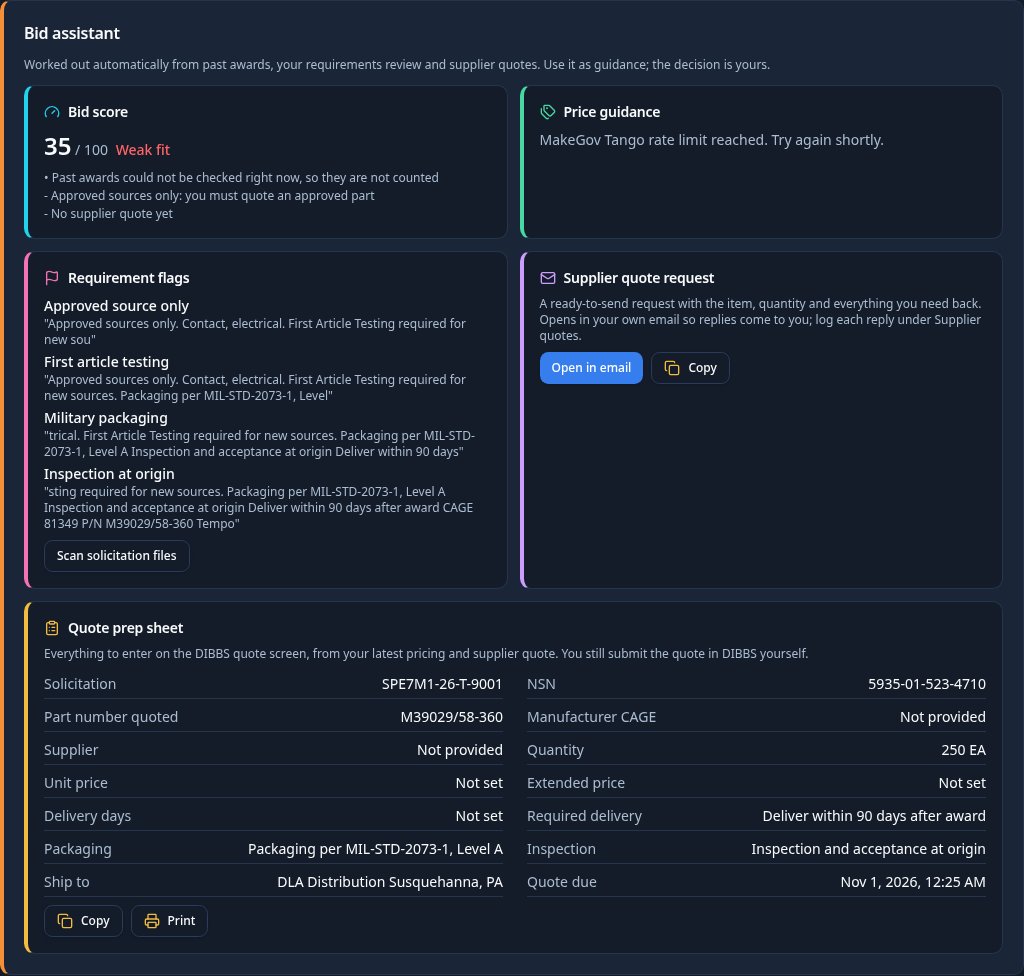
Every opportunity page has a Bid assistant above the requirements matrix. It is guidance only; the decision stays yours.
- Bid score: 0 to 100 with a verdict (Strong bid, Worth a look, Weak fit) and the reasons, from past winners, your own past wins, source restriction, requirements you cannot meet, supplier quotes and time left.
- Price guidance: a suggested unit price range when past awards report quantities. When they show only total contract prices, it shows the low, median and high totals and never invents a unit price.
- Requirement flags: spots approved-source rules, first article testing, military packaging, higher-level quality, inspection at origin, export controls, domestic-source rules, conformance and traceability documents, and drawings. Press "Scan solicitation files" to check the DIBBS files too.
- Supplier quote request: a ready email asking for unit price, lead time, exact part and CAGE, and certifications. "Open in email" uses your own email, so replies come to you; log each reply under Supplier quotes.
- Quote prep sheet: everything to type into the DIBBS quote screen, from your latest pricing and supplier quote. Copy or print it. You still submit the quote in DIBBS yourself.
16. Tips and common mistakes
- Always confirm details in DIBBS before quoting; amendments can change quantity, delivery or closing time.
- Never quote an item restricted to approved sources unless you are, or your supplier is, an approved source with traceability.
- Include freight, packaging (MIL-STD-2073) and marking (MIL-STD-129, IUID under MIL-STD-130) costs; they often erase thin margins.
- Quote the unit of issue shown in the solicitation, not your supplier's pack size.
- Record No bid decisions too: they explain gaps later and help focus your watch list.